> ## Documentation Index
> Fetch the complete documentation index at: https://docs.siftly.ai/llms.txt
> Use this file to discover all available pages before exploring further.
# Plans & billing
> Compare Siftly Shopping plans, start a trial, and manage your subscription and usage.
 ## Overview
Siftly Shopping is subscription-based. You start on a free trial and upgrade to a paid plan as your needs grow. This page covers the plans, how to start and manage a subscription, and how usage works.
## Plans
| Plan | For |
| -------------- | ---------------------------------------------------------------- |
| **Try** | A free trial to explore Siftly Shopping, no credit card required |
| **Starter** | Smaller catalogs getting started with AI shopping visibility |
| **Growth** | Growing brands that need more tracking and more content |
| **Pro** | High-volume brands wanting the full toolset and highest limits |
| **Enterprise** | Custom scale, terms, and support; talk to our team |
Plan names, limits, and included features are shown live on the plan-selection screen. Treat that screen as the source of truth for what each plan includes.
## Starting and upgrading
After onboarding, you'll land on the plan-selection screen.
Choose **Try** to begin your free trial and go straight to your dashboard.
From **Settings → Billing**, pick a paid plan and complete checkout. Your plan and limits update immediately.
Cancel or reactivate from **Settings → Billing**. Cancellations remain active until the end of your billing period.
## How you're billed
Siftly Shopping supports two billing paths:
* **Shopify Managed Pricing**: merchants who install from the Shopify App Store are billed through Shopify.
* **Stripe**: existing merchants are billed through Stripe.
Your billing path is set automatically based on how you signed up.
## Usage and limits
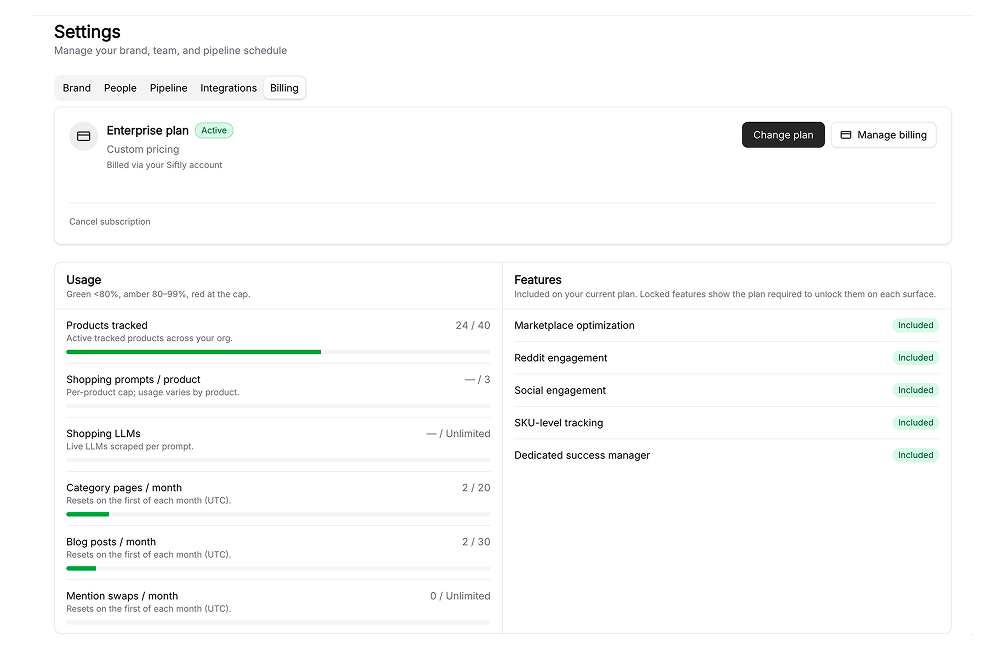
Each plan includes limits on resources like monthly analysis and content generation. Track your usage against those limits in **Settings → Billing**. As you approach a limit you'll see a warning; upgrading raises your limits right away.
## Related
Manage your organization and team.
New here? Set up and run your first analysis.
## Overview
Siftly Shopping is subscription-based. You start on a free trial and upgrade to a paid plan as your needs grow. This page covers the plans, how to start and manage a subscription, and how usage works.
## Plans
| Plan | For |
| -------------- | ---------------------------------------------------------------- |
| **Try** | A free trial to explore Siftly Shopping, no credit card required |
| **Starter** | Smaller catalogs getting started with AI shopping visibility |
| **Growth** | Growing brands that need more tracking and more content |
| **Pro** | High-volume brands wanting the full toolset and highest limits |
| **Enterprise** | Custom scale, terms, and support; talk to our team |
Plan names, limits, and included features are shown live on the plan-selection screen. Treat that screen as the source of truth for what each plan includes.
## Starting and upgrading
After onboarding, you'll land on the plan-selection screen.
Choose **Try** to begin your free trial and go straight to your dashboard.
From **Settings → Billing**, pick a paid plan and complete checkout. Your plan and limits update immediately.
Cancel or reactivate from **Settings → Billing**. Cancellations remain active until the end of your billing period.
## How you're billed
Siftly Shopping supports two billing paths:
* **Shopify Managed Pricing**: merchants who install from the Shopify App Store are billed through Shopify.
* **Stripe**: existing merchants are billed through Stripe.
Your billing path is set automatically based on how you signed up.
## Usage and limits
Each plan includes limits on resources like monthly analysis and content generation. Track your usage against those limits in **Settings → Billing**. As you approach a limit you'll see a warning; upgrading raises your limits right away.
## Related
Manage your organization and team.
New here? Set up and run your first analysis.