> ## Documentation Index
> Fetch the complete documentation index at: https://docs.siftly.ai/llms.txt
> Use this file to discover all available pages before exploring further.
# Google Analytics 4
> Connect Google Analytics 4 (GA4) to measure how much traffic AI assistants send to your store and which pages they reach.
 ## Overview
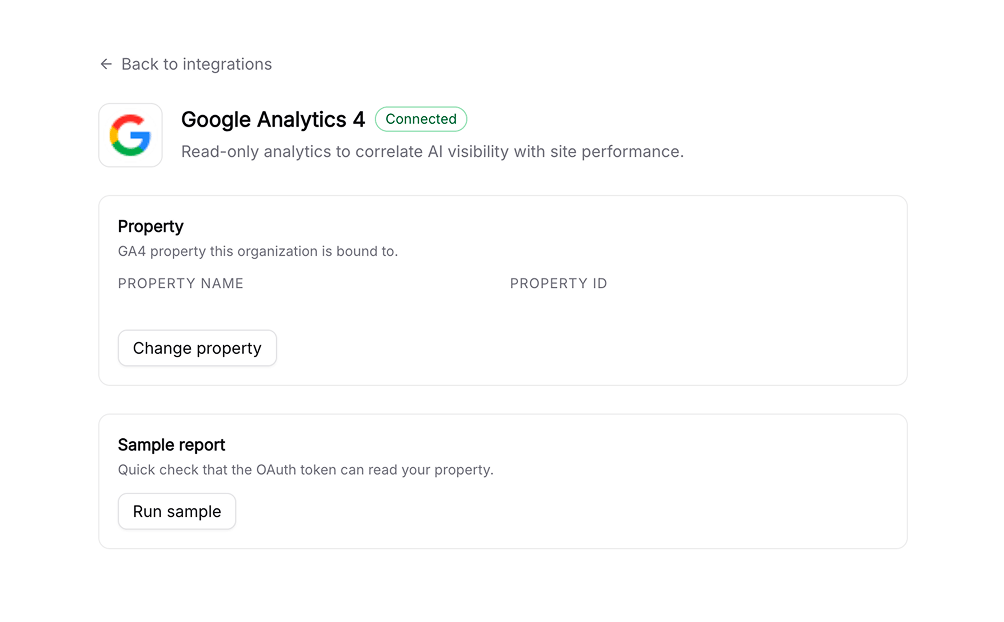
Connecting **Google Analytics 4 (GA4)** lets Siftly Shopping show how much traffic AI assistants, like ChatGPT and Perplexity, send to your store, and which pages they land on. It closes the loop between AI visibility and real visits.
**Difficulty:** ✅ Easy. Read-only Google OAuth, then pick your GA4 property.
This integration is **read-only**. Siftly never writes to your analytics. It only reads reports.
***
## Prerequisites
* A Google Analytics 4 property with data flowing
* A Google user with access to that property
***
## Connecting
Go to **Settings → Integrations** and click **Connect** next to **Google Analytics 4**.
Sign in with the Google account that has access to your GA4 property and approve read-only access.
Choose the GA4 property to connect. Siftly binds to it and starts reading reports.
***
## What it powers
Once connected, GA4 data appears on the [Traffic](/shopping/analytics/traffic) page:
* Sessions, users, and engagement, with period-over-period change
* **AI referral traffic** broken down by assistant (ChatGPT, Perplexity, and others)
* Your top pages by AI-assistant traffic
***
## Reconnecting and disconnecting
* **Reconnect**: If access expires, the GA4 card shows a reconnect prompt; re-authorize with Google.
* **Disconnect**: Go to **Settings → Integrations → Google Analytics 4** and click **Disconnect** to remove stored credentials.
***
## Troubleshooting
The Google account you used may not have access to a GA4 property. Sign in with an account that does, or have an admin grant access, then reconnect.
AI-assistant referrals only appear once shoppers actually arrive from those assistants. Coverage grows as your AI visibility improves and as assistants pass referrer information.
***
## Related
See AI referral and organic traffic together.
Add organic search performance.
Compare every integration and what each one powers.
Correlate traffic gains with shelf gains.
## Overview
Connecting **Google Analytics 4 (GA4)** lets Siftly Shopping show how much traffic AI assistants, like ChatGPT and Perplexity, send to your store, and which pages they land on. It closes the loop between AI visibility and real visits.
**Difficulty:** ✅ Easy. Read-only Google OAuth, then pick your GA4 property.
This integration is **read-only**. Siftly never writes to your analytics. It only reads reports.
***
## Prerequisites
* A Google Analytics 4 property with data flowing
* A Google user with access to that property
***
## Connecting
Go to **Settings → Integrations** and click **Connect** next to **Google Analytics 4**.
Sign in with the Google account that has access to your GA4 property and approve read-only access.
Choose the GA4 property to connect. Siftly binds to it and starts reading reports.
***
## What it powers
Once connected, GA4 data appears on the [Traffic](/shopping/analytics/traffic) page:
* Sessions, users, and engagement, with period-over-period change
* **AI referral traffic** broken down by assistant (ChatGPT, Perplexity, and others)
* Your top pages by AI-assistant traffic
***
## Reconnecting and disconnecting
* **Reconnect**: If access expires, the GA4 card shows a reconnect prompt; re-authorize with Google.
* **Disconnect**: Go to **Settings → Integrations → Google Analytics 4** and click **Disconnect** to remove stored credentials.
***
## Troubleshooting
The Google account you used may not have access to a GA4 property. Sign in with an account that does, or have an admin grant access, then reconnect.
AI-assistant referrals only appear once shoppers actually arrive from those assistants. Coverage grows as your AI visibility improves and as assistants pass referrer information.
***
## Related
See AI referral and organic traffic together.
Add organic search performance.
Compare every integration and what each one powers.
Correlate traffic gains with shelf gains.