> ## Documentation Index
> Fetch the complete documentation index at: https://docs.siftly.ai/llms.txt
> Use this file to discover all available pages before exploring further.
# Google Merchant Center
> Connect Google Merchant Center (GMC) to sync your product feed into Siftly Shopping and push optimized product data back to Google.
 ## Overview
**Google Merchant Center (GMC)** is your product feed for Google's shopping surfaces. Connecting it lets Siftly Shopping read your feed for analysis and push **optimized product attributes** back to Google.
**Difficulty:** ✅ Easy. Connect with secure Google OAuth, then pick your Merchant Center account.
Google Merchant Center (GMC) is for your product feed. It is different from **Google Manufacturer Center (GMfC)**, which is for brand-owned manufacturer attributes. Many brands connect both. See [Google Manufacturer Center](/shopping/integrations/google-manufacturer-center).
***
## Prerequisites
* A Google Merchant Center account with at least one product feed
* A Google user with access to that Merchant Center account
***
## Connecting
Go to **Settings → Integrations** and click **Connect** next to **Google Merchant Center**. You'll be redirected to Google to authorize access.
Sign in with the Google account that manages your Merchant Center and approve the requested access. Google redirects you back to Siftly.
Siftly shows the Merchant Center accounts you can access. Select the one you want to connect.
Siftly imports your product feed in the background and links it to your tracked catalog.
***
## What Siftly imports
Once connected, Siftly reads your GMC product feed (titles, descriptions, attributes, and identifiers) and uses it to enrich your tracked products and to power [Product Optimization](/shopping/content/product-optimization).
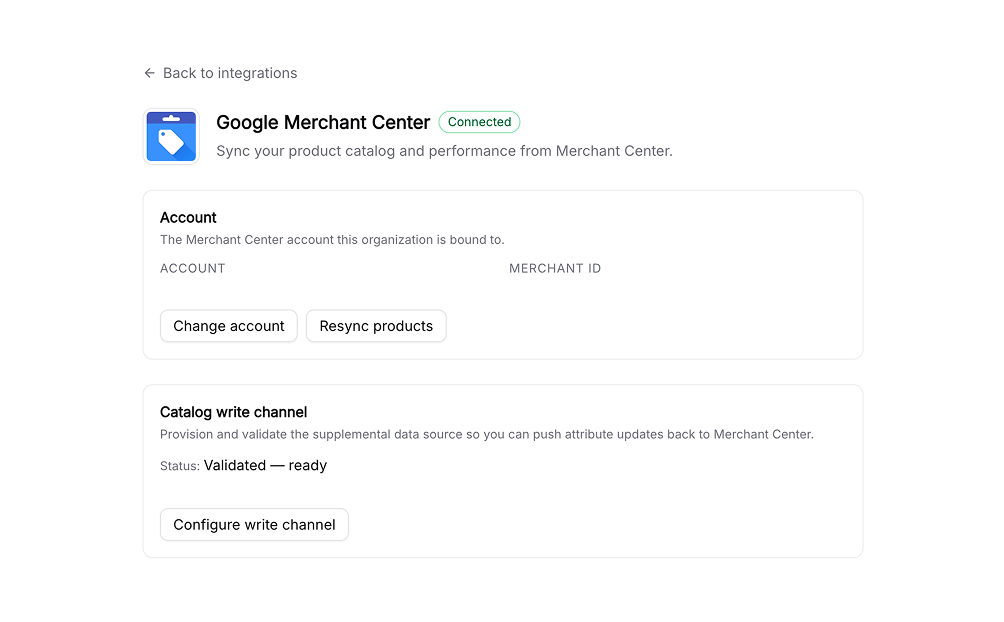
You can re-sync at any time from the GMC card in **Settings → Integrations**.
***
## Pushing optimized data back to Google
GMC is also a **publish destination**. When you run [Product Optimization](/shopping/content/product-optimization), Siftly writes your optimized attributes to Google through a supplemental data source: a separate feed that layers your improvements on top of your primary feed without overwriting it.
Using a supplemental data source means your original feed stays intact. You can review what Siftly proposes before it's submitted, and roll back from the optimization job's version history.
***
## Reconnecting and disconnecting
* **Reconnect**: If access expires or permissions change, the GMC card shows a reconnect prompt. Click **Reconnect** and re-authorize with Google.
* **Disconnect**: Go to **Settings → Integrations → Google Merchant Center** and click **Disconnect**. This removes stored credentials; it does not delete data already in your Merchant Center.
***
## Troubleshooting
The Google account you used may not have access to a Merchant Center account. Sign in with an account that manages your GMC, or have an admin grant you access, then reconnect.
Confirm your Merchant Center has an active product feed. Re-sync from the GMC card; large feeds can take a few minutes.
Supplemental data sources can take time to process on Google's side. Check the optimization job's status and your Merchant Center's feed processing.
***
## Related
Publish brand-owned manufacturer attributes.
Optimize product data and submit it to GMC.
Compare every integration and what each one powers.
See how ready each product is to win in AI shopping.
## Overview
**Google Merchant Center (GMC)** is your product feed for Google's shopping surfaces. Connecting it lets Siftly Shopping read your feed for analysis and push **optimized product attributes** back to Google.
**Difficulty:** ✅ Easy. Connect with secure Google OAuth, then pick your Merchant Center account.
Google Merchant Center (GMC) is for your product feed. It is different from **Google Manufacturer Center (GMfC)**, which is for brand-owned manufacturer attributes. Many brands connect both. See [Google Manufacturer Center](/shopping/integrations/google-manufacturer-center).
***
## Prerequisites
* A Google Merchant Center account with at least one product feed
* A Google user with access to that Merchant Center account
***
## Connecting
Go to **Settings → Integrations** and click **Connect** next to **Google Merchant Center**. You'll be redirected to Google to authorize access.
Sign in with the Google account that manages your Merchant Center and approve the requested access. Google redirects you back to Siftly.
Siftly shows the Merchant Center accounts you can access. Select the one you want to connect.
Siftly imports your product feed in the background and links it to your tracked catalog.
***
## What Siftly imports
Once connected, Siftly reads your GMC product feed (titles, descriptions, attributes, and identifiers) and uses it to enrich your tracked products and to power [Product Optimization](/shopping/content/product-optimization).
You can re-sync at any time from the GMC card in **Settings → Integrations**.
***
## Pushing optimized data back to Google
GMC is also a **publish destination**. When you run [Product Optimization](/shopping/content/product-optimization), Siftly writes your optimized attributes to Google through a supplemental data source: a separate feed that layers your improvements on top of your primary feed without overwriting it.
Using a supplemental data source means your original feed stays intact. You can review what Siftly proposes before it's submitted, and roll back from the optimization job's version history.
***
## Reconnecting and disconnecting
* **Reconnect**: If access expires or permissions change, the GMC card shows a reconnect prompt. Click **Reconnect** and re-authorize with Google.
* **Disconnect**: Go to **Settings → Integrations → Google Merchant Center** and click **Disconnect**. This removes stored credentials; it does not delete data already in your Merchant Center.
***
## Troubleshooting
The Google account you used may not have access to a Merchant Center account. Sign in with an account that manages your GMC, or have an admin grant you access, then reconnect.
Confirm your Merchant Center has an active product feed. Re-sync from the GMC card; large feeds can take a few minutes.
Supplemental data sources can take time to process on Google's side. Check the optimization job's status and your Merchant Center's feed processing.
***
## Related
Publish brand-owned manufacturer attributes.
Optimize product data and submit it to GMC.
Compare every integration and what each one powers.
See how ready each product is to win in AI shopping.