> ## Documentation Index
> Fetch the complete documentation index at: https://docs.siftly.ai/llms.txt
> Use this file to discover all available pages before exploring further.
# Google Search Console
> Connect Google Search Console (GSC) to track organic search clicks, impressions, CTR, and average position alongside your AI visibility.
 ## Overview
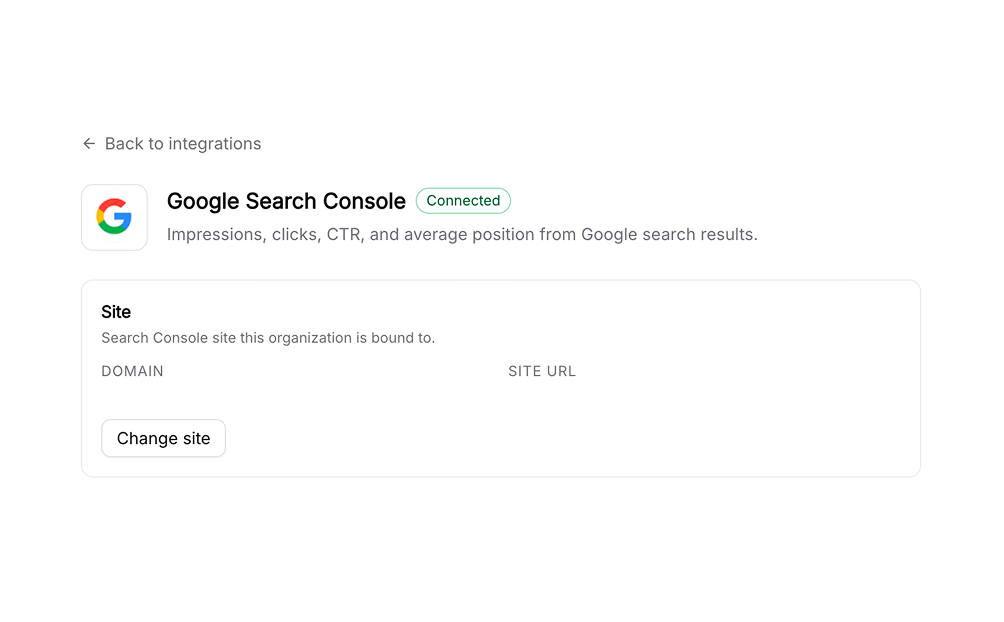
Connecting **Google Search Console (GSC)** brings your organic search performance (clicks, impressions, click-through rate, and average position) alongside your AI visibility, so you can see both channels in one place.
**Difficulty:** ✅ Easy. Read-only Google OAuth, then pick your site.
This integration is **read-only**. Siftly only reads your Search Console reports.
***
## Prerequisites
* A verified site in Google Search Console
* A Google user with access to that site
***
## Connecting
Go to **Settings → Integrations** and click **Connect** next to **Google Search Console**.
Sign in with the Google account that has access to your Search Console and approve read-only access.
Choose the verified site to connect. You can only connect sites your account already owns or manages in Search Console.
***
## What it powers
Once connected, GSC data appears on the [Traffic](/shopping/analytics/traffic) page:
* Organic clicks and impressions over time
* Click-through rate and average position
* Top queries and pages driving organic search
***
## Reconnecting and disconnecting
* **Reconnect**: If access expires, the GSC card shows a reconnect prompt; re-authorize with Google.
* **Disconnect**: Go to **Settings → Integrations → Google Search Console** and click **Disconnect** to remove stored credentials.
***
## Troubleshooting
Your Google account must have access to a verified Search Console site. Verify the site in Search Console or have an admin grant you access, then reconnect.
Search Console data is typically a couple of days behind. Recent days may be incomplete until Google finalizes them.
***
## Related
See organic and AI referral traffic together.
Add AI-assistant referral traffic.
Compare every integration and what each one powers.
See which sources AI engines cite in your market.
## Overview
Connecting **Google Search Console (GSC)** brings your organic search performance (clicks, impressions, click-through rate, and average position) alongside your AI visibility, so you can see both channels in one place.
**Difficulty:** ✅ Easy. Read-only Google OAuth, then pick your site.
This integration is **read-only**. Siftly only reads your Search Console reports.
***
## Prerequisites
* A verified site in Google Search Console
* A Google user with access to that site
***
## Connecting
Go to **Settings → Integrations** and click **Connect** next to **Google Search Console**.
Sign in with the Google account that has access to your Search Console and approve read-only access.
Choose the verified site to connect. You can only connect sites your account already owns or manages in Search Console.
***
## What it powers
Once connected, GSC data appears on the [Traffic](/shopping/analytics/traffic) page:
* Organic clicks and impressions over time
* Click-through rate and average position
* Top queries and pages driving organic search
***
## Reconnecting and disconnecting
* **Reconnect**: If access expires, the GSC card shows a reconnect prompt; re-authorize with Google.
* **Disconnect**: Go to **Settings → Integrations → Google Search Console** and click **Disconnect** to remove stored credentials.
***
## Troubleshooting
Your Google account must have access to a verified Search Console site. Verify the site in Search Console or have an admin grant you access, then reconnect.
Search Console data is typically a couple of days behind. Recent days may be incomplete until Google finalizes them.
***
## Related
See organic and AI referral traffic together.
Add AI-assistant referral traffic.
Compare every integration and what each one powers.
See which sources AI engines cite in your market.