> ## Documentation Index
> Fetch the complete documentation index at: https://docs.siftly.ai/llms.txt
> Use this file to discover all available pages before exploring further.
# Integrations overview
> Connect Siftly Shopping to Shopify, Google Merchant Center, Google Manufacturer Center, GA4, Google Search Console, and Cloudflare.
 ## Overview
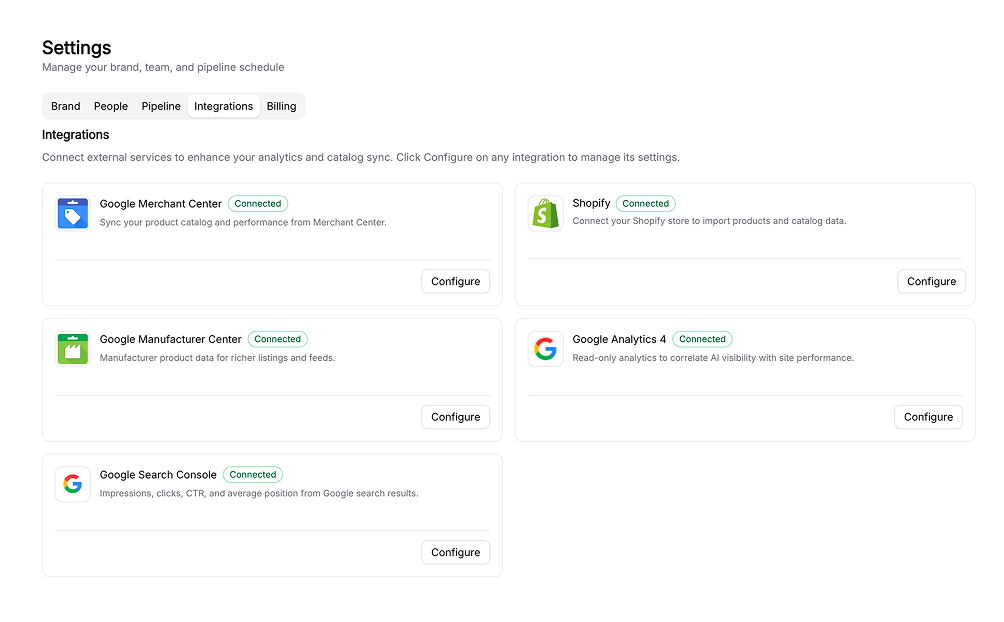
Integrations are how Siftly Shopping gets your data in and pushes your improvements back out. Some bring your **catalog and feeds** into Siftly; others let you **publish** content and product updates; and others add **analytics**, from visitor traffic to AI crawler activity, so you can connect AI visibility to what actually reaches your store.
## Supported integrations
Sync your catalog and publish blog posts, Collection Pages, and product updates.
Sync your product feed and push optimized attributes back to Google.
Publish authoritative, brand-owned manufacturer attributes.
Measure AI-assistant referral traffic to your store.
Track organic search clicks, impressions, and position.
See which AI and search crawlers read your store, by bot and page.
## At a glance
| Integration | Direction | Auth | Powers |
| ------------------------------ | -------------- | ----------------- | ------------------------------------------------------------------------- |
| **Shopify** | In + out | OAuth / App Store | Catalog sync, publishing |
| **Google Merchant Center** | In + out | Google OAuth | Feed sync, [Product Optimization](/shopping/content/product-optimization) |
| **Google Manufacturer Center** | Out | Google OAuth | Manufacturer attributes |
| **Google Analytics 4** | In (read-only) | Google OAuth | [Traffic](/shopping/analytics/traffic) |
| **Google Search Console** | In (read-only) | Google OAuth | [Traffic](/shopping/analytics/traffic) |
| **Cloudflare** | In (read-only) | API token | [Traffic](/shopping/analytics/traffic) crawler activity |
## How connecting works
Go to **Settings → Integrations**. Each integration has a card showing its connection status.
Click **Connect** and complete the secure OAuth flow (or install from the Shopify App Store). You never share a password with Siftly.
For the Google integrations, choose the specific account, property, or site to connect.
Siftly syncs in the background, and the integration begins powering the dashboards and tools above.
Some traffic-tracking flows reference your **Organization ID**, found under **Settings → Organization**. Match whatever label your dashboard shows.
## Related
Connect your catalog and run your first analysis.
Optimize products and submit them to Google.
## Overview
Integrations are how Siftly Shopping gets your data in and pushes your improvements back out. Some bring your **catalog and feeds** into Siftly; others let you **publish** content and product updates; and others add **analytics**, from visitor traffic to AI crawler activity, so you can connect AI visibility to what actually reaches your store.
## Supported integrations
Sync your catalog and publish blog posts, Collection Pages, and product updates.
Sync your product feed and push optimized attributes back to Google.
Publish authoritative, brand-owned manufacturer attributes.
Measure AI-assistant referral traffic to your store.
Track organic search clicks, impressions, and position.
See which AI and search crawlers read your store, by bot and page.
## At a glance
| Integration | Direction | Auth | Powers |
| ------------------------------ | -------------- | ----------------- | ------------------------------------------------------------------------- |
| **Shopify** | In + out | OAuth / App Store | Catalog sync, publishing |
| **Google Merchant Center** | In + out | Google OAuth | Feed sync, [Product Optimization](/shopping/content/product-optimization) |
| **Google Manufacturer Center** | Out | Google OAuth | Manufacturer attributes |
| **Google Analytics 4** | In (read-only) | Google OAuth | [Traffic](/shopping/analytics/traffic) |
| **Google Search Console** | In (read-only) | Google OAuth | [Traffic](/shopping/analytics/traffic) |
| **Cloudflare** | In (read-only) | API token | [Traffic](/shopping/analytics/traffic) crawler activity |
## How connecting works
Go to **Settings → Integrations**. Each integration has a card showing its connection status.
Click **Connect** and complete the secure OAuth flow (or install from the Shopify App Store). You never share a password with Siftly.
For the Google integrations, choose the specific account, property, or site to connect.
Siftly syncs in the background, and the integration begins powering the dashboards and tools above.
Some traffic-tracking flows reference your **Organization ID**, found under **Settings → Organization**. Match whatever label your dashboard shows.
## Related
Connect your catalog and run your first analysis.
Optimize products and submit them to Google.