> ## Documentation Index
> Fetch the complete documentation index at: https://docs.siftly.ai/llms.txt
> Use this file to discover all available pages before exploring further.
# Shopify
> Connect your Shopify store to sync your catalog and publish blog posts, Collection Pages, and product updates directly from Siftly Shopping.
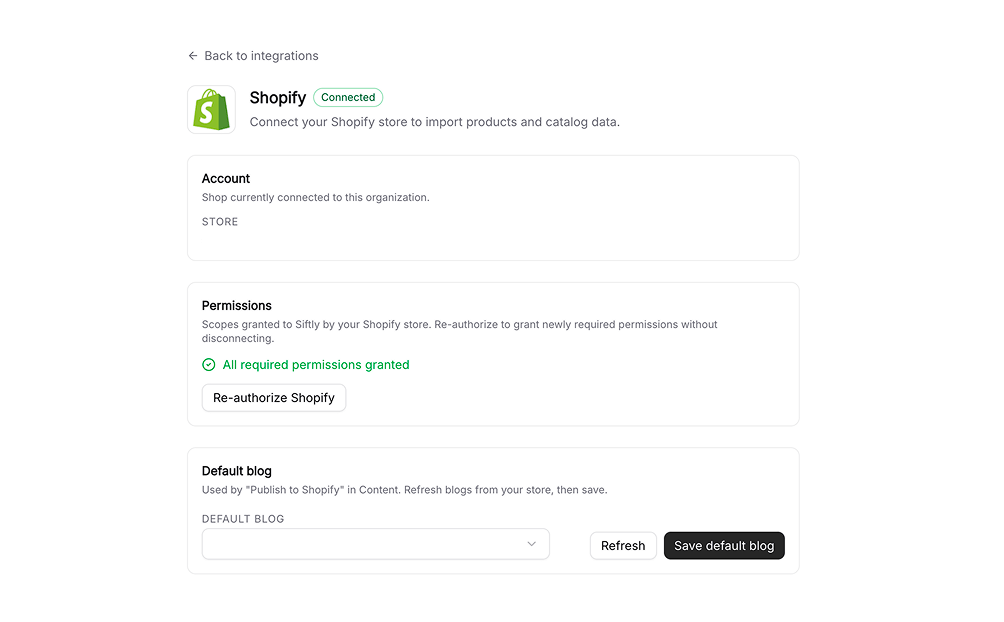 ## Overview
Shopify is the deepest integration in Siftly Shopping. It does two jobs: it **syncs your catalog in** (products, variants, images, and collections) and it lets you **publish back out** (blog posts, Collection Pages, and optimized product data), without leaving Siftly.
**Difficulty:** ✅ Easy. Connect in a few clicks with secure OAuth. No code, no API keys.
There are two ways to connect, depending on how you found Siftly:
| Connection path | Who it's for |
| ----------------------------- | ------------------------------------------------------------- |
| **OAuth from Siftly** | You signed up at app.siftly.ai and want to connect your store |
| **Shopify App Store install** | You installed Siftly Shopping from the Shopify App Store |
***
## Prerequisites
* A Shopify store
* A user with permission to install apps and approve access on that store
***
## Connecting from Siftly (OAuth)
Go to **Settings → Integrations** and click **Connect** next to **Shopify**. Enter your store's `your-store.myshopify.com` domain.
You'll be redirected to Shopify to review the permissions Siftly requests. Click **Install** to approve. You never share a password with Siftly.
Shopify redirects you back to Siftly and your catalog begins syncing in the background. You'll see a live count as products come in.
***
## Connecting from the Shopify App Store
When you install Siftly Shopping from the App Store, Shopify sends you to Siftly to finish setup. If you aren't signed in yet, Siftly remembers your store and **claims** it once you create or sign in to your organization.
Find **Siftly Shopping** in the Shopify App Store and click **Install**.
Shopify hands you off to Siftly. Sign in or create your organization, and Siftly automatically attaches (claims) your store to it.
Once claimed, your catalog syncs in the background, just like the OAuth path.
If your store isn't attached automatically (for example, you closed the tab mid-signup), open **Settings → Integrations** and finish the connection, or revisit the claim link Shopify provided.
***
## What Siftly syncs
| Data | Notes |
| --------------- | ---------------------------------------------------------------------------------------------- |
| **Products** | Title, description, type, vendor, tags, and status |
| **Variants** | Options, SKUs, and prices per variant |
| **Images** | Product and media-library images, available in the content image picker |
| **Collections** | Existing collections, used to detect [Collection Page](/shopping/content/collections) coverage |
| **Metafields** | Read for context and written when you publish, where applicable |
Sync runs in the background after connecting and refreshes as your catalog changes.
***
## Publishing from Siftly
Once connected, Siftly can publish back to your store:
* **Blog posts** → your Shopify blog. See [Content](/shopping/content/blog).
* **Collection Pages** → Shopify collections, published to your Online Store. See [Collection Pages](/shopping/content/collections).
* **Optimized product data** → submitted through Google Merchant Center and Manufacturer Center. See [Product Optimization](/shopping/content/product-optimization).
Every publish action lets you choose **Draft** (review in Shopify first) or **Published** (go live immediately).
***
## Permissions and reconnecting
Siftly requests only the scopes it needs to sync your catalog and publish on your behalf. Occasionally Shopify introduces a new permission requirement; when that happens Siftly shows a **Reconnect required** prompt on the Shopify integration card.
If you see a missing-scopes or reconnect prompt, publishing is paused until you reconnect. Go to **Settings → Integrations → Shopify** and click **Reconnect** to approve the updated permissions.
To switch stores, disconnect and reconnect with the new store's domain.
***
## Data and privacy
Siftly honors Shopify's mandatory privacy webhooks (customer data request, customer redact, and shop redact). When you uninstall the app from Shopify, Siftly stops syncing your store.
To disconnect from Siftly: go to **Settings → Integrations → Shopify** and click **Disconnect**. This removes your stored credentials; it does not affect content already published to your store.
***
## Troubleshooting
Sign in to Siftly and open **Settings → Integrations**. If the store is pending, finish the connection there. If it still doesn't attach, reconnect via OAuth using your `myshopify.com` domain.
Shopify added a permission requirement since you connected. Click **Reconnect** and approve the updated scopes. Publishing resumes immediately afterward.
The initial sync runs in the background and can take a few minutes for large catalogs. If products still don't appear, reconnect the integration to re-trigger a sync.
Make sure your store has at least one blog (for posts) and that the integration has the scopes to write collections. Reconnect if you recently changed store settings.
***
## Related
Compare every integration and what each one powers.
Generate and publish Shopify collection pages.
Generate blog posts and publish them to Shopify.
Optimize product data and submit it to Google.
## Overview
Shopify is the deepest integration in Siftly Shopping. It does two jobs: it **syncs your catalog in** (products, variants, images, and collections) and it lets you **publish back out** (blog posts, Collection Pages, and optimized product data), without leaving Siftly.
**Difficulty:** ✅ Easy. Connect in a few clicks with secure OAuth. No code, no API keys.
There are two ways to connect, depending on how you found Siftly:
| Connection path | Who it's for |
| ----------------------------- | ------------------------------------------------------------- |
| **OAuth from Siftly** | You signed up at app.siftly.ai and want to connect your store |
| **Shopify App Store install** | You installed Siftly Shopping from the Shopify App Store |
***
## Prerequisites
* A Shopify store
* A user with permission to install apps and approve access on that store
***
## Connecting from Siftly (OAuth)
Go to **Settings → Integrations** and click **Connect** next to **Shopify**. Enter your store's `your-store.myshopify.com` domain.
You'll be redirected to Shopify to review the permissions Siftly requests. Click **Install** to approve. You never share a password with Siftly.
Shopify redirects you back to Siftly and your catalog begins syncing in the background. You'll see a live count as products come in.
***
## Connecting from the Shopify App Store
When you install Siftly Shopping from the App Store, Shopify sends you to Siftly to finish setup. If you aren't signed in yet, Siftly remembers your store and **claims** it once you create or sign in to your organization.
Find **Siftly Shopping** in the Shopify App Store and click **Install**.
Shopify hands you off to Siftly. Sign in or create your organization, and Siftly automatically attaches (claims) your store to it.
Once claimed, your catalog syncs in the background, just like the OAuth path.
If your store isn't attached automatically (for example, you closed the tab mid-signup), open **Settings → Integrations** and finish the connection, or revisit the claim link Shopify provided.
***
## What Siftly syncs
| Data | Notes |
| --------------- | ---------------------------------------------------------------------------------------------- |
| **Products** | Title, description, type, vendor, tags, and status |
| **Variants** | Options, SKUs, and prices per variant |
| **Images** | Product and media-library images, available in the content image picker |
| **Collections** | Existing collections, used to detect [Collection Page](/shopping/content/collections) coverage |
| **Metafields** | Read for context and written when you publish, where applicable |
Sync runs in the background after connecting and refreshes as your catalog changes.
***
## Publishing from Siftly
Once connected, Siftly can publish back to your store:
* **Blog posts** → your Shopify blog. See [Content](/shopping/content/blog).
* **Collection Pages** → Shopify collections, published to your Online Store. See [Collection Pages](/shopping/content/collections).
* **Optimized product data** → submitted through Google Merchant Center and Manufacturer Center. See [Product Optimization](/shopping/content/product-optimization).
Every publish action lets you choose **Draft** (review in Shopify first) or **Published** (go live immediately).
***
## Permissions and reconnecting
Siftly requests only the scopes it needs to sync your catalog and publish on your behalf. Occasionally Shopify introduces a new permission requirement; when that happens Siftly shows a **Reconnect required** prompt on the Shopify integration card.
If you see a missing-scopes or reconnect prompt, publishing is paused until you reconnect. Go to **Settings → Integrations → Shopify** and click **Reconnect** to approve the updated permissions.
To switch stores, disconnect and reconnect with the new store's domain.
***
## Data and privacy
Siftly honors Shopify's mandatory privacy webhooks (customer data request, customer redact, and shop redact). When you uninstall the app from Shopify, Siftly stops syncing your store.
To disconnect from Siftly: go to **Settings → Integrations → Shopify** and click **Disconnect**. This removes your stored credentials; it does not affect content already published to your store.
***
## Troubleshooting
Sign in to Siftly and open **Settings → Integrations**. If the store is pending, finish the connection there. If it still doesn't attach, reconnect via OAuth using your `myshopify.com` domain.
Shopify added a permission requirement since you connected. Click **Reconnect** and approve the updated scopes. Publishing resumes immediately afterward.
The initial sync runs in the background and can take a few minutes for large catalogs. If products still don't appear, reconnect the integration to re-trigger a sync.
Make sure your store has at least one blog (for posts) and that the integration has the scopes to write collections. Reconnect if you recently changed store settings.
***
## Related
Compare every integration and what each one powers.
Generate and publish Shopify collection pages.
Generate blog posts and publish them to Shopify.
Optimize product data and submit it to Google.