> ## Documentation Index
> Fetch the complete documentation index at: https://docs.siftly.ai/llms.txt
> Use this file to discover all available pages before exploring further.
# Quickstart
> Connect your catalog and read your first Share of Shelf in about 15 minutes.
 ## Prerequisites
Before you begin, make sure you have:
* A Siftly Shopping account ([get started](https://app.siftly.ai/sign-up))
* Your store on **Shopify** or **Google Merchant Center** (or a list of products to add manually)
* A sense of the markets and use cases your products compete in
***
## Step 1: Create your organization
When you first sign in, Siftly walks you through creating an **organization**, your workspace, which holds your brand, products, team, and subscription.
Enter your company name and website, then continue.
If you manage multiple brands or clients, create one organization per brand. Each organization has isolated data, users, and billing.
***
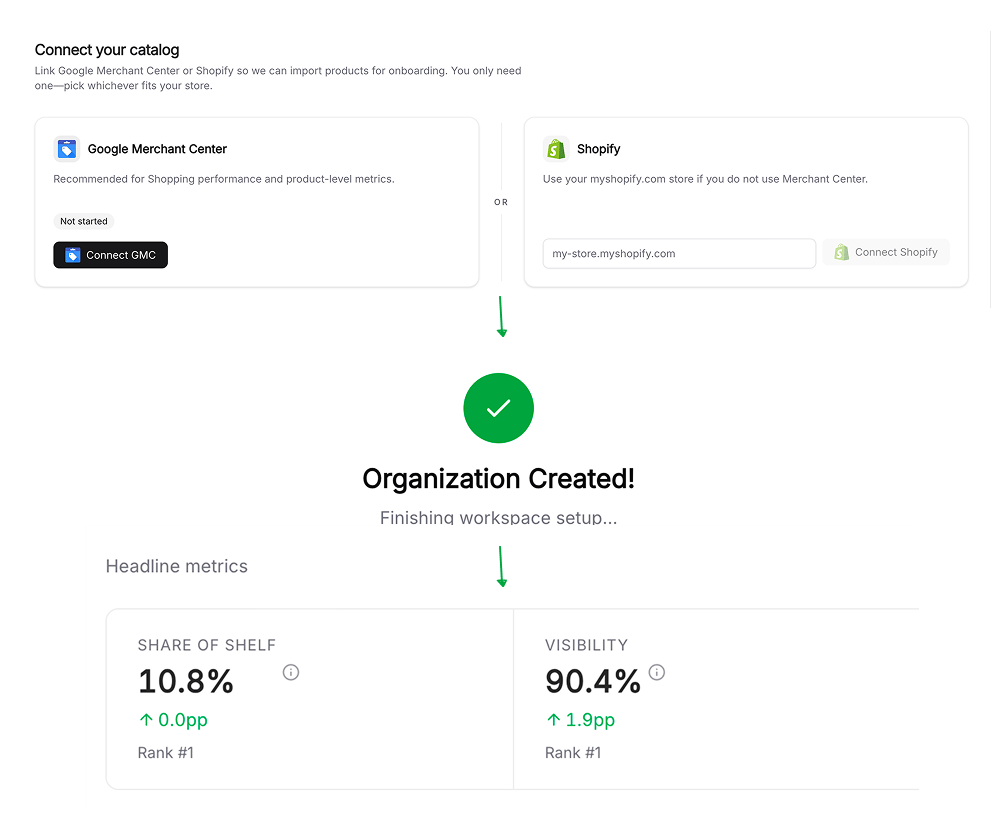
## Step 2: Connect your catalog
Siftly needs to know what you sell. Choose the source that matches your store:
| Source | Best for | What Siftly imports |
| -------------------------- | ------------------------------------ | ------------------------------------------- |
| **Shopify** | Shopify merchants | Products, variants, images, and collections |
| **Google Merchant Center** | Anyone running Google Shopping feeds | Your product feed and performance data |
| **Website** | Stores on other platforms | Products you add manually |
Connecting **Shopify** or **Google Merchant Center** uses a secure OAuth flow, so you never share a password with Siftly. After you authorize, Siftly syncs your catalog in the background. You'll see a live count as products come in.
You can connect more integrations later from **Settings → Integrations**. See the [integrations overview](/shopping/integrations/overview) for everything Siftly Shopping connects to.
***
## Step 3: Select your products
From your synced catalog, pick the **1–5 products** you want to track first. Siftly de-duplicates variants and shows one row per product, so you choose the items that matter most.
You can add or remove tracked products later from the [Products](/shopping/analytics/products) page.
***
## Step 4: Review your prompts
Siftly generates a set of **prompts** for your selected products: the kinds of questions real shoppers ask AI assistants in your market, pairing category needs with shopper personas.
Review the suggestions, edit any that don't fit, and continue. These prompts are what Siftly runs against AI shopping engines to measure your presence.
***
## Step 5: Launch analysis and read your Share of Shelf
With your products and prompts set, Siftly runs its first analysis, querying AI shopping engines and recording which products get recommended.
The first run typically completes in a few minutes. When it's done, head to your dashboard and explore:
Your headline metrics (appearances, reliability, and top-3 rank) at a glance.
Your Share of Shelf and competitive position, sliced by product and geography.
The sources AI engines cited when recommending products in your market.
The exact prompts and AI responses behind your metrics.
***
## What's next?
Generate your Brand Kit so every piece of content Siftly creates stays on-brand and grounded.
Add GA4 and Google Search Console to see AI-assistant referral traffic and organic performance.
Turn your shelf gaps into blog content, Collection Pages, and optimized products.
Compare plans and pick the one that fits your catalog and team.
## Prerequisites
Before you begin, make sure you have:
* A Siftly Shopping account ([get started](https://app.siftly.ai/sign-up))
* Your store on **Shopify** or **Google Merchant Center** (or a list of products to add manually)
* A sense of the markets and use cases your products compete in
***
## Step 1: Create your organization
When you first sign in, Siftly walks you through creating an **organization**, your workspace, which holds your brand, products, team, and subscription.
Enter your company name and website, then continue.
If you manage multiple brands or clients, create one organization per brand. Each organization has isolated data, users, and billing.
***
## Step 2: Connect your catalog
Siftly needs to know what you sell. Choose the source that matches your store:
| Source | Best for | What Siftly imports |
| -------------------------- | ------------------------------------ | ------------------------------------------- |
| **Shopify** | Shopify merchants | Products, variants, images, and collections |
| **Google Merchant Center** | Anyone running Google Shopping feeds | Your product feed and performance data |
| **Website** | Stores on other platforms | Products you add manually |
Connecting **Shopify** or **Google Merchant Center** uses a secure OAuth flow, so you never share a password with Siftly. After you authorize, Siftly syncs your catalog in the background. You'll see a live count as products come in.
You can connect more integrations later from **Settings → Integrations**. See the [integrations overview](/shopping/integrations/overview) for everything Siftly Shopping connects to.
***
## Step 3: Select your products
From your synced catalog, pick the **1–5 products** you want to track first. Siftly de-duplicates variants and shows one row per product, so you choose the items that matter most.
You can add or remove tracked products later from the [Products](/shopping/analytics/products) page.
***
## Step 4: Review your prompts
Siftly generates a set of **prompts** for your selected products: the kinds of questions real shoppers ask AI assistants in your market, pairing category needs with shopper personas.
Review the suggestions, edit any that don't fit, and continue. These prompts are what Siftly runs against AI shopping engines to measure your presence.
***
## Step 5: Launch analysis and read your Share of Shelf
With your products and prompts set, Siftly runs its first analysis, querying AI shopping engines and recording which products get recommended.
The first run typically completes in a few minutes. When it's done, head to your dashboard and explore:
Your headline metrics (appearances, reliability, and top-3 rank) at a glance.
Your Share of Shelf and competitive position, sliced by product and geography.
The sources AI engines cited when recommending products in your market.
The exact prompts and AI responses behind your metrics.
***
## What's next?
Generate your Brand Kit so every piece of content Siftly creates stays on-brand and grounded.
Add GA4 and Google Search Console to see AI-assistant referral traffic and organic performance.
Turn your shelf gaps into blog content, Collection Pages, and optimized products.
Compare plans and pick the one that fits your catalog and team.