

Overview
Connecting Cloudflare AI Crawl Control shows you which AI and search crawlers are visiting your store, which pages they hit, and how often. That covers ChatGPT (GPTBot, ChatGPT-User), Claude (ClaudeBot), Perplexity (PerplexityBot), Google (Googlebot, Google-Extended), and more.
This is the raw signal behind your visibility in AI answers: it tells you whether AI assistants and AI-powered search are actually reading your product and content pages. Once connected, the data appears on your Traffic dashboard.
Difficulty: ⚠️ Medium. You route your domain through Cloudflare (a DNS change), then paste a read-only token into Siftly. Cloudflare’s Free plan is all you need, at no cost.
This integration is read-only. Siftly never changes your site, DNS, or crawler settings. It only reads aggregated crawler numbers, through a token you scope to a single domain’s analytics.
How it works
Cloudflare sits in front of your website as a reverse proxy. Every request to your store, including requests from AI crawlers, passes through Cloudflare’s edge, where it is recorded in Cloudflare’s analytics. Siftly reads those crawler analytics through a read-only Cloudflare API token that you generate. Because of this design, your domain has to be served through Cloudflare for there to be anything to read. If you don’t have Cloudflare yet, most of this guide is about getting your domain onto Cloudflare first. The setup has four stages:- Create a free Cloudflare account.
- Get your domain served through Cloudflare. This is the important step, and the method depends on your platform.
- Create a read-only Analytics token and copy your Zone ID.
- Paste them into Siftly under Settings → Integrations → Cloudflare.
Prerequisites
- Your ecommerce domain (for example
store.example.comorexample.com). - Access to wherever your domain’s DNS is managed today, usually your domain registrar (GoDaddy, Namecheap, and similar) or your store platform’s domain settings.
- Admin access to your Siftly organization.
- About 30–45 minutes. DNS changes can take a little while to propagate.
Which path is yours?
Getting your domain onto Cloudflare works differently depending on how your store is hosted. Find your situation, then follow the matching path in Stage 2.Stage 1: Create a free Cloudflare account
1
Sign up
Go to
dash.cloudflare.com/sign-up and create an account with your work email, then verify the email.2
Choose the Free plan
The Free plan covers this integration in full. A paid plan only adds verified-bot naming and, at the Enterprise tier, per-request logs. Both are optional niceties (see What to expect).
Stage 2: Get your domain served through Cloudflare
Path A: Standard onboarding (you control your DNS)
Use this if your domain is registered at a normal registrar and you can change its nameservers. This is the common case for WooCommerce, BigCommerce, headless, and self-hosted stores.1
Add your site
In the Cloudflare dashboard, click Add a site and enter your domain (for example
example.com). Choose the Free plan when prompted.2
Confirm the record is proxied
Cloudflare scans your existing DNS records and shows them. Confirm that the record pointing at your store (usually an A or CNAME record for your root and
www) is set to Proxied, shown as an orange cloud rather than grey. The orange cloud routes traffic through Cloudflare; a grey cloud means Cloudflare sees nothing.3
Update your nameservers
Cloudflare gives you two nameservers (for example
xxx.ns.cloudflare.com). Log in to your registrar and replace your current nameservers with these two.4
Wait for Active
Wait for Cloudflare to confirm the domain is Active, usually minutes to a few hours. You’ll get an email. Once the domain shows Active with an orange (proxied) record, crawler traffic starts flowing through Cloudflare and being recorded. Continue to Stage 3.
Path B: Orange-to-Orange for Shopify (Liquid) stores
Shopify serves your storefront from its own edge, so you can’t simply move nameservers the way Path A does. Instead, you place your own Cloudflare zone in front of Shopify with a proxied CNAME. Cloudflare calls this Orange-to-Orange (O2O). Your Cloudflare zone records the crawler traffic before it reaches Shopify.1
Add your domain to Cloudflare
Add the domain and point its nameservers at Cloudflare, exactly as in Path A.
2
Create a proxied CNAME
In Cloudflare DNS, create a proxied (orange-cloud) CNAME for your storefront hostname pointing to
shops.myshopify.com.3
Set SSL to Full
In SSL/TLS → Overview, set the encryption mode to Full.
4
Keep Shopify serving the store
Keep your existing domain configured in your Shopify admin so Shopify continues to serve the store and issue its certificate.
Stage 3: Create a read-only token and copy your Zone ID
Siftly needs two things from Cloudflare: your Zone ID (which domain to read) and a read-only Analytics API token (permission to read crawler numbers only).Copy your Zone ID
1
Open your domain
In the Cloudflare dashboard, click your domain.
2
Copy the Zone ID
On the Overview page, look in the right-hand sidebar under API. Copy the Zone ID, a 32-character string like
0528d34ebf7f5f8a1c2d3e4f5a6b7c8d.Create the API token
1
Start a custom token
Go to My Profile → API Tokens → Create Token, then Create Custom Token.
2
Name it
Give it a name, for example
siftly-ai-crawl-readonly.3
Add one permission
Under Permissions, add exactly one: Zone → Analytics → Read. That’s the only permission needed. “Logs Read” is not required.
4
Scope it to your domain
Under Zone Resources, choose Include → Specific zone → your domain.
5
Create and copy
Create the token and copy it now. Cloudflare shows it only once.
Why this is safe: the token is read-only and scoped to a single zone’s analytics. It can’t change your site, DNS, security, or crawler settings, and it can’t touch any other domain in your account. Siftly stores it encrypted.
Stage 4: Connect in Siftly
1
Open Integrations
In Siftly, open Settings → Integrations.
2
Connect Cloudflare
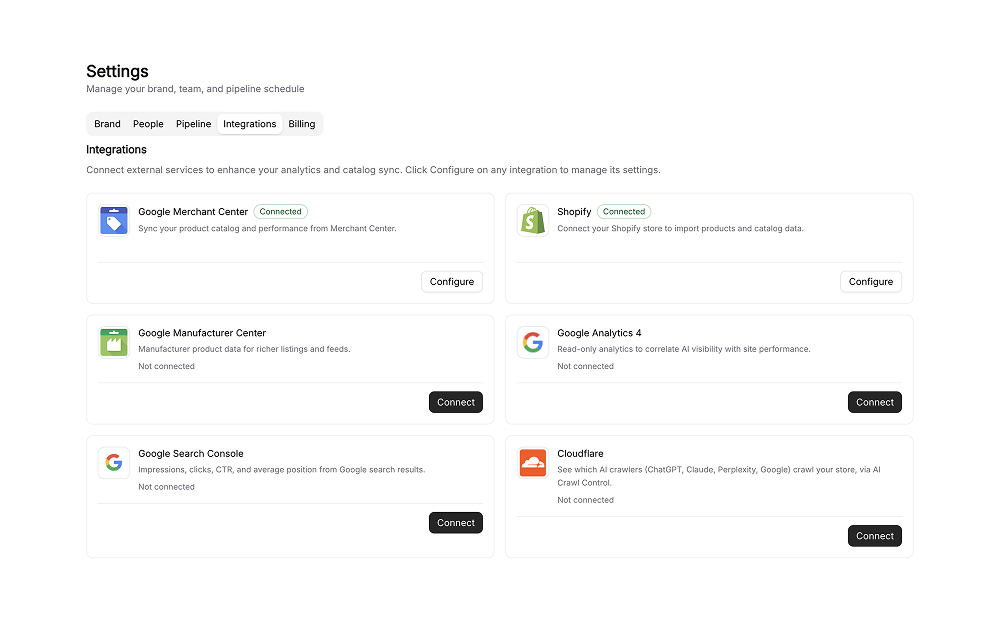
Find the Cloudflare card and click Connect.
3
Paste your details
In the Connect Cloudflare dialog, paste:
- Zone ID (from Stage 3)
- API token (from Stage 3)
- Zone name (optional, for example
store.example.com, used for display only)
What you’ll see after connecting
The crawler data lands on your Traffic dashboard:- Overview tab. Crawler Activity trend charts split by AI Citations, AI Indexing, and AI Training, plus a per-bot breakdown. A Platforms table lists every AI system that visited, by category, with change-versus-previous-period arrows.
- Pages tab. Top Crawled Pages ranked by crawler requests, with each bar broken down by bot; Pages by Crawler, where you pick a bot and see which pages it hits; and a Platform-to-Page Journey view alongside a Published Articles table that combines crawler, AI-referral, and Search Console data.
- Logs tab. A per-request crawler log for the last 24 hours. This tab needs a Cloudflare Enterprise plan. On Free, Pro, and Business plans you’ll see the aggregated data on the Overview and Pages tabs instead.
What to expect
Troubleshooting
'Token was rejected' or 'Reconnect required'
'Token was rejected' or 'Reconnect required'
The token is wrong, expired, or lacks Zone → Analytics → Read. Re-issue the token (Stage 3) and reconnect.
Connected, but no crawler data
Connected, but no crawler data
Your domain probably isn’t proxied. Check that the DNS record (or O2O CNAME) shows an orange cloud, and that the domain is Active in Cloudflare. Also give real crawlers time to visit.
Wrong domain's data
Wrong domain's data
The Zone ID belongs to a different domain. Copy the Zone ID from the correct domain’s Overview page (Stage 3).
Bot names show as user-agent, not 'verified'
Bot names show as user-agent, not 'verified'
Expected on plans without Bot Management. No action needed; detection still works.
Logs tab is empty
Logs tab is empty
Per-request logs need Cloudflare Enterprise. Use the Overview and Pages tabs instead.
Numbers look lower than Cloudflare's own dashboard
Numbers look lower than Cloudflare's own dashboard
Small differences are expected, because Siftly focuses on a curated set of AI and search bots. Large gaps usually mean the domain was only recently proxied, or history is still building.
FAQ
Do I have to pay Cloudflare?
Do I have to pay Cloudflare?
No. The Free plan covers this integration.
Will moving to Cloudflare change my store or slow it down?
Will moving to Cloudflare change my store or slow it down?
Cloudflare acts as a proxy and CDN and typically speeds sites up. The risk to watch is DNS or SSL misconfiguration, so follow the SSL notes above (especially the Shopify O2O warnings) and test your store right after the switch.
Can Siftly change anything on my Cloudflare account?
Can Siftly change anything on my Cloudflare account?
No. The token is read-only and scoped to a single zone’s analytics.
How do I disconnect?
How do I disconnect?
Go to Settings → Integrations → Cloudflare and disconnect. This removes the stored token; data already pulled remains.
Glossary
Questions, or a non-standard hosting setup? Contact Siftly support before changing DNS if you’re unsure. A bad DNS or SSL change can briefly affect your live store.
Related
Traffic
See crawler activity alongside AI referral and organic traffic.
Citations
See which sources AI engines cite when recommending products.
Integrations overview
Compare every integration and what each one powers.
Visibility & Share of Shelf
Connect crawler coverage to shelf presence.