

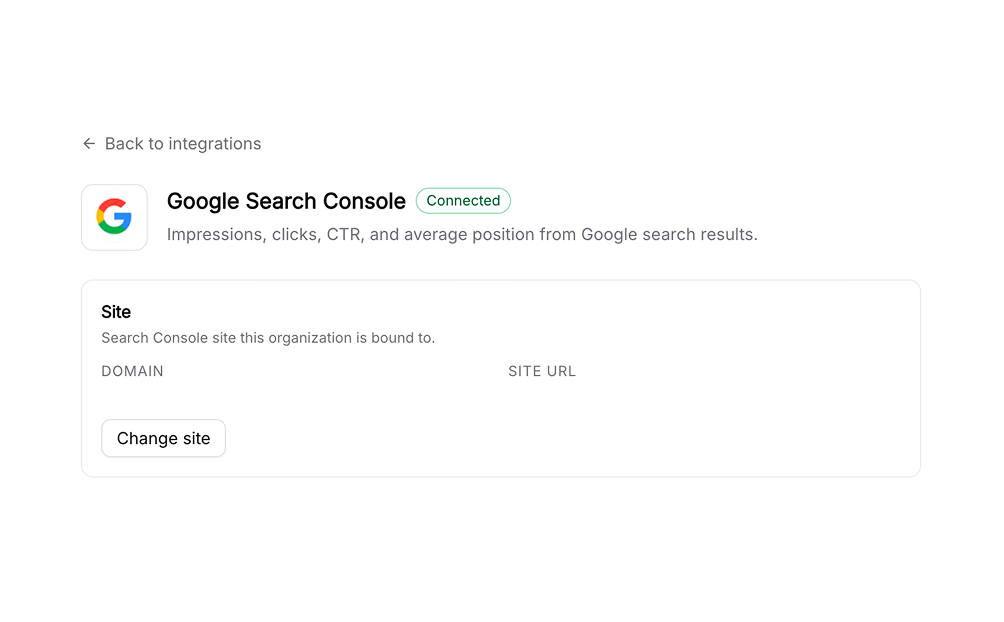
Overview
Connecting Google Search Console (GSC) brings your organic search performance (clicks, impressions, click-through rate, and average position) alongside your AI visibility, so you can see both channels in one place. Difficulty: ✅ Easy. Read-only Google OAuth, then pick your site.This integration is read-only. Siftly only reads your Search Console reports.
Prerequisites
- A verified site in Google Search Console
- A Google user with access to that site
Connecting
1
Start the connection
Go to Settings → Integrations and click Connect next to Google Search Console.
2
Authorize with Google
Sign in with the Google account that has access to your Search Console and approve read-only access.
3
Pick your site
Choose the verified site to connect. You can only connect sites your account already owns or manages in Search Console.
What it powers
Once connected, GSC data appears on the Traffic page:- Organic clicks and impressions over time
- Click-through rate and average position
- Top queries and pages driving organic search
Reconnecting and disconnecting
- Reconnect: If access expires, the GSC card shows a reconnect prompt; re-authorize with Google.
- Disconnect: Go to Settings → Integrations → Google Search Console and click Disconnect to remove stored credentials.
Troubleshooting
Data looks delayed
Data looks delayed
Search Console data is typically a couple of days behind. Recent days may be incomplete until Google finalizes them.
Related
Traffic
See organic and AI referral traffic together.
Google Analytics 4
Add AI-assistant referral traffic.
Integrations overview
Compare every integration and what each one powers.
Citations
See which sources AI engines cite in your market.